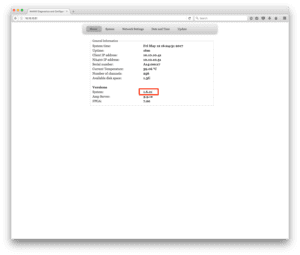
For optimal performance of your EGI System, it is important to ensure the firmware on your NA400 or NA GTEN 100 amp is up to date and compatible with your version of Net Station. If you discover the firmware needs to be updated, EGI Support will provide you with a download link to the files you will need.
The current release of firmware for both the NA 400 and the NA GTEN 100 is 1.6.21 for use with Net Station 5.4.0.1. Although the download folder described below is called NA 400 firmware, the update files inside are to be used to update both the NA 400 and NA GTEN 100, therefore the instructions provided here should also be applied to both.
1. Using the link provided by the EGI Support Team, download the NA 400 firmware 1.6.21 folder.
This folder will either be part of your Net Station 5.4 Upgrade Package folder or EGI Support will have provided you with a link for just this folder alone.
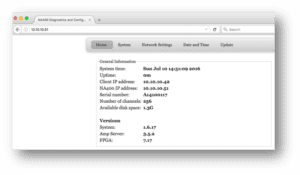
2. On your Data Acquisition Computer with the NA 400 connected,, open Firefox and enter the IP address of your NA 400 in the address bar.
Note: the IP address of your first amplifier is 10.10.10.51, and should you own additional amplifiers, the final two digits will increment from 51:
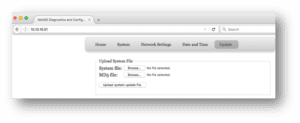
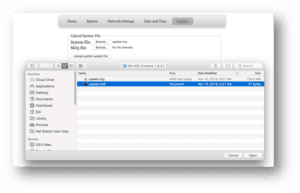
To select the System file, click Browse to navigate to the NA 400 firmware 1.6.21 folder. Single click to select the update.img file and click Open.
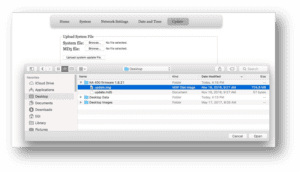
Important Note: When completing this step, ensure that you do not have any firmware folders on your computer. Firefox will remember the pathways from previous updates, and because the System file is always called update.img it is possible that you will select the incorrect file.
To select the MD5 file, click Browse to navigate to the NA 400 firmware 1.6.21 folder. Single click to select the update.md5 file and click Open.
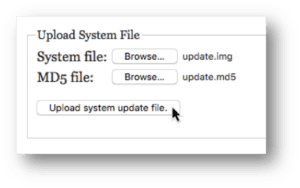
4. You will now see that both files have been uploaded. Click Upload system update file to begin the update procedure:
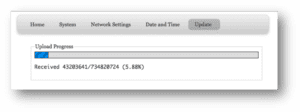
5. You will see a progress bar during the upload and it will take, on average 5 minutes to complete:
Note: If you encounter an error message saying Update file is CORRUPT, contact supportteam@egi.com for additional advice.
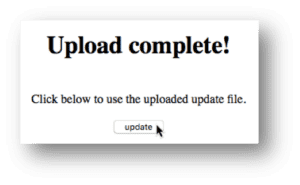
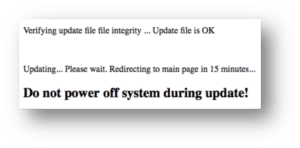
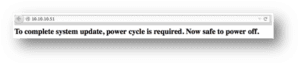
This can be done by turning off the NA 400 or NA GTEN external power supply, waiting 30 seconds and then turning on the power supply once again.
9. Once the amplifier has fully started up, refresh your Firefox page in order to confirm your new firmware version: