


If your crash is specific to a single file, and Net Station works well with other files, you can immediately address the problematic file using the File Validator utility in Net Station 5.4.
If the crash is not specific to just one file, but rather Net Station is crashing across all files, our first priority is to investigate the cause. By determining the cause, we can then advise you on what changes are needed to resolve the issue.
To help us to investigate the crash you experienced, please follow the steps below to gather the necessary information from the EGI System where the crash occurred and send it us:
1. Create a folder where you will put all the necessary information EGI needs:
a. Right click on the desktop and select New Folder from the menu that appears:
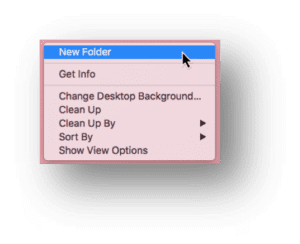
b. Double click on the <New Folder> name and rename the folder appropriately:

2. Make a copy of the System Profile report to add to this folder:
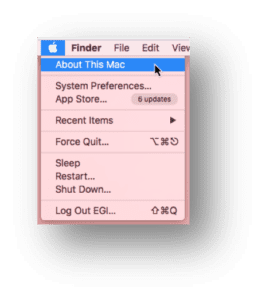
a. From the Apple pull-down menu, click About This Mac …
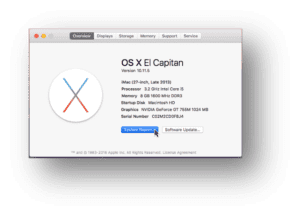
b. Click on System Report in the System Information window:
i. Note that this is where you can come in order to determine exactly what version of the Operating System you have installed.
c. At this point, a full System Report will be generated. Single click on the report to ensure the System Information menu bar is activated, and from the File pull-down menu, click Save…
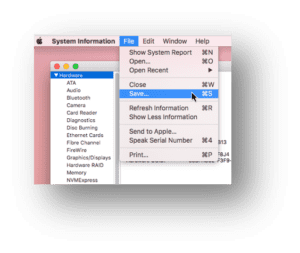
d. After confirming the .spx file name and save location, click Save to create the file:
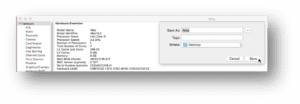
e. Drag the .spx file into your folder of information to send to EGI:
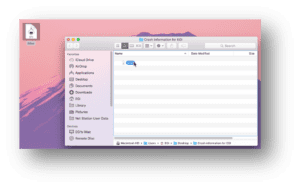
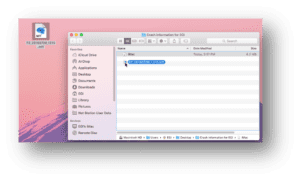
3. Drag a copy of the .mff file(s) you were working on when the crash happened into your folder of information to send to EGI:
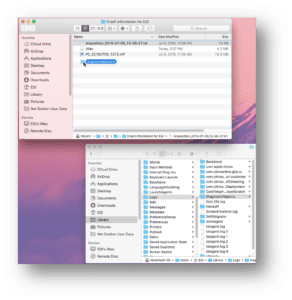
4. Navigate to Machintosh HD/Users/EGI/Library/Logs and drag the whole DiagnosticReports folder to your folder of information to send to EGI:
5. In three other situations, there is additional log information that can be included:
a. Acquisition crashes: additionally navigate to Machintosh HD/Users/EGI/Documents/Net Station User Data/Log and identify the log file associated with the the acquisition session where Net Station crashed and drag this to your folder of information to send to EGI:
i. NOTE: the time associated with this file will be when you turned on Streaming rather than when you started recording.
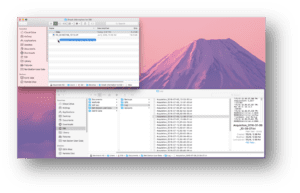
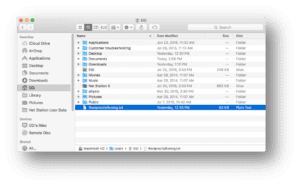
b. Reciprocity Visualization Environment (RVE) crashes: additionally navigate to Macintosh HD/EGI/ and drag the ReciprocityRunlog.txt to your folder of information to send to EGI:
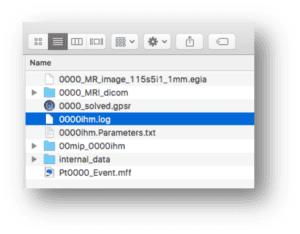
c. Modal Image Pipeline (MIP) crashes: Navigate to the working directory that you have created for your Conformal Atlas Head Model (CAHM) or Individual Head Model (IHM) and drag the log file into your folder of information to send to EGI:
At this point, you have successfully gathered all the necessary information.
The last steps are to compress the folder and then send it to EGI!